How to send a fax from your iPhone, step by step
You can send a real fax from an iPhone in about two minutes. The fax travels over the phone network to the other side's fax machine or fax service, exactly like one sent from an office machine. Here is the full process using HonestFax.

What you need
- An iPhone with the HonestFax app
- The recipient's fax number
- The pages, on paper or as a PDF or photo
You don't need an account, a fax machine or a landline.
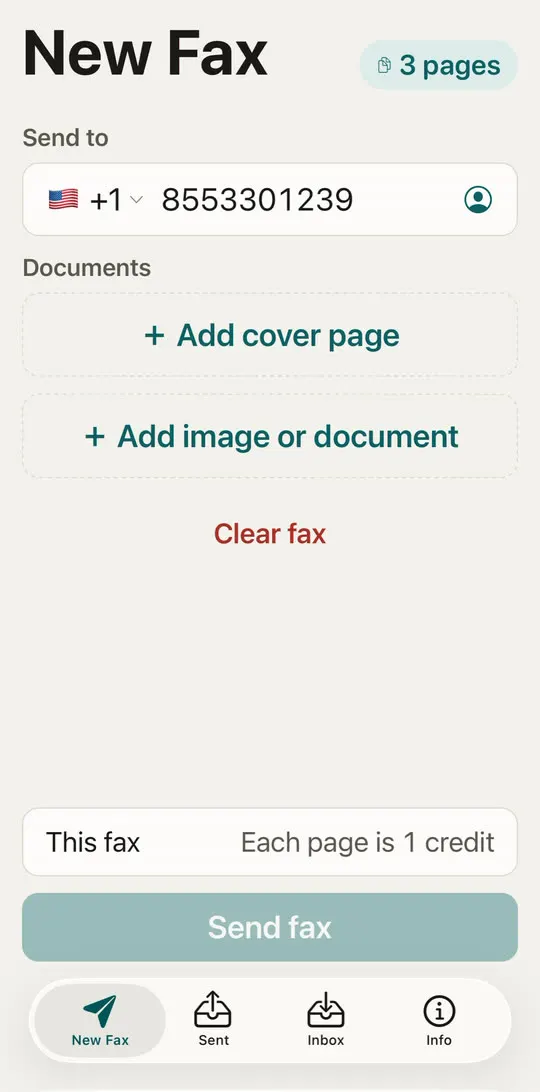
Step 1: Enter the fax number
Open the app on the New Fax tab. Under Send to, tap the flag to pick the country (United States, Canada, United Kingdom, Germany or Japan), then type the number. You can also tap the contact icon to pick a number saved in your Contacts. Sending abroad? See how to send an international fax for the right number format.
Step 2: Add your pages
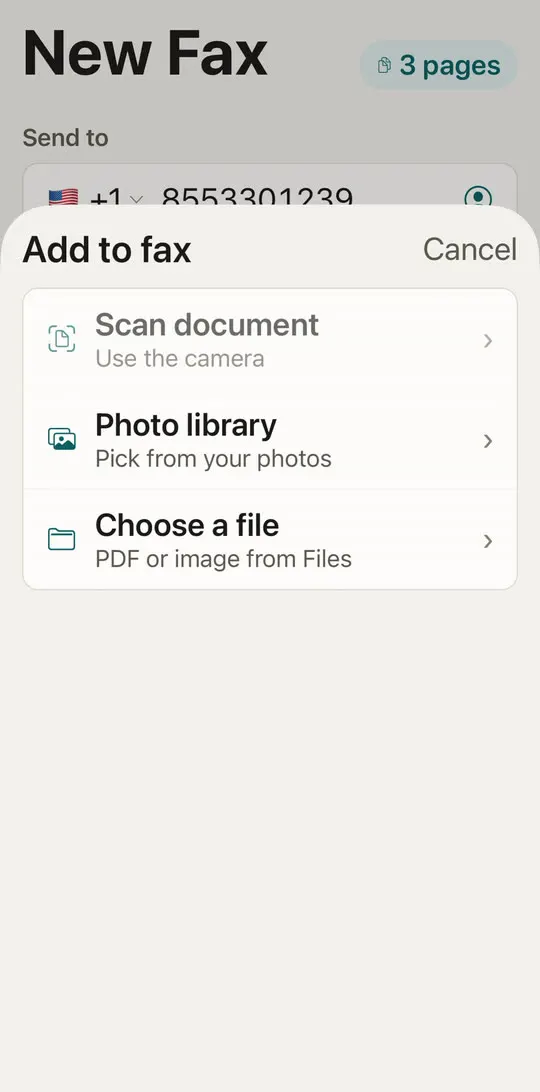
Tap Add image or document and choose where the pages come from:
- Scan document opens the camera scanner. Hold the phone over the page and it finds the edges, straightens the page and cleans it up. Scan as many pages as you need. For sharp, readable pages, see how to scan documents for a fax.
- Photo library adds photos you already took.
- Choose a file adds a PDF from Files, iCloud Drive or a downloaded email attachment. More on that in how to fax a PDF from your iPhone.
You can add several documents. Tap Edit to reorder them or remove one.
Step 3: Add a cover page (optional)
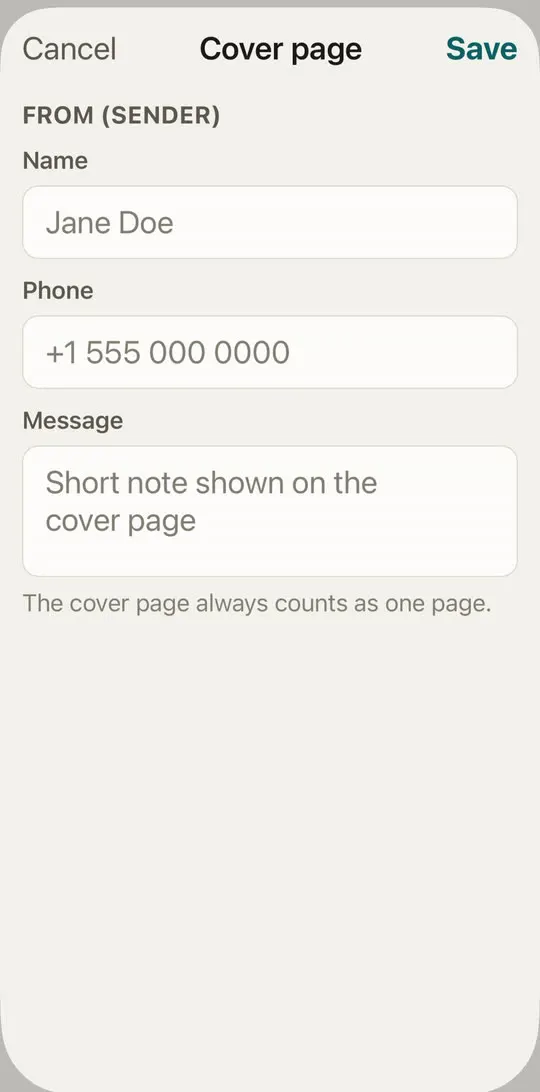
Tap Add cover page to put a first page with your name, phone number and a short message. Offices use it to route your fax to the right person. You can also make a cover sheet in your browser. Not sure what to write? See what to put on a fax cover sheet.
Step 4: Check the cost
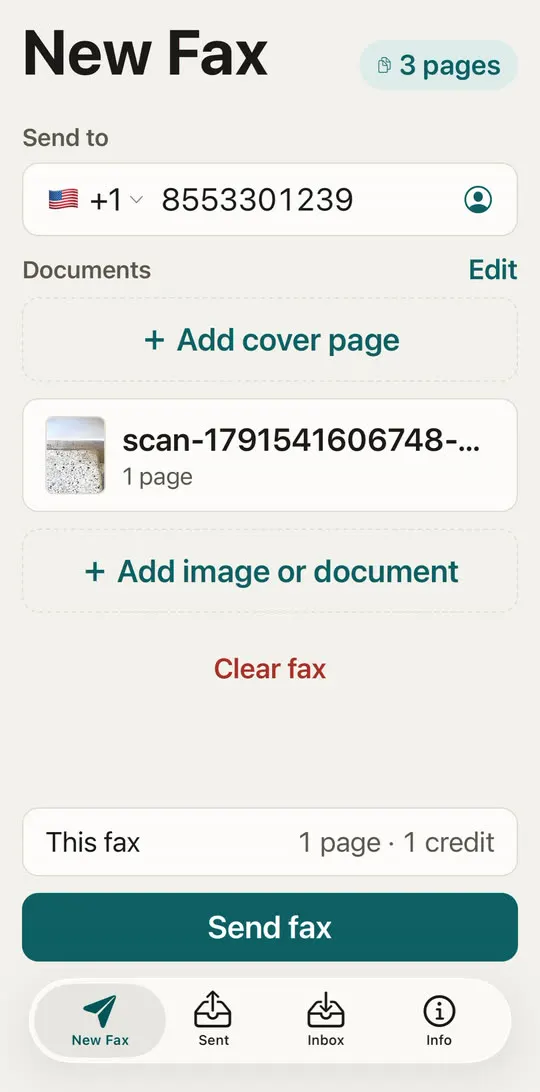
Above the Send fax button, the app shows how many pages the fax has and how many credits it uses. One credit is one page. New devices get the first page on us, so a one-page fax can cost nothing.
If you don't have enough credits, the app shows which pack covers this fax before anything is uploaded. Credits never expire, so pages you don't use stay for next time.
Step 5: Send and watch it go
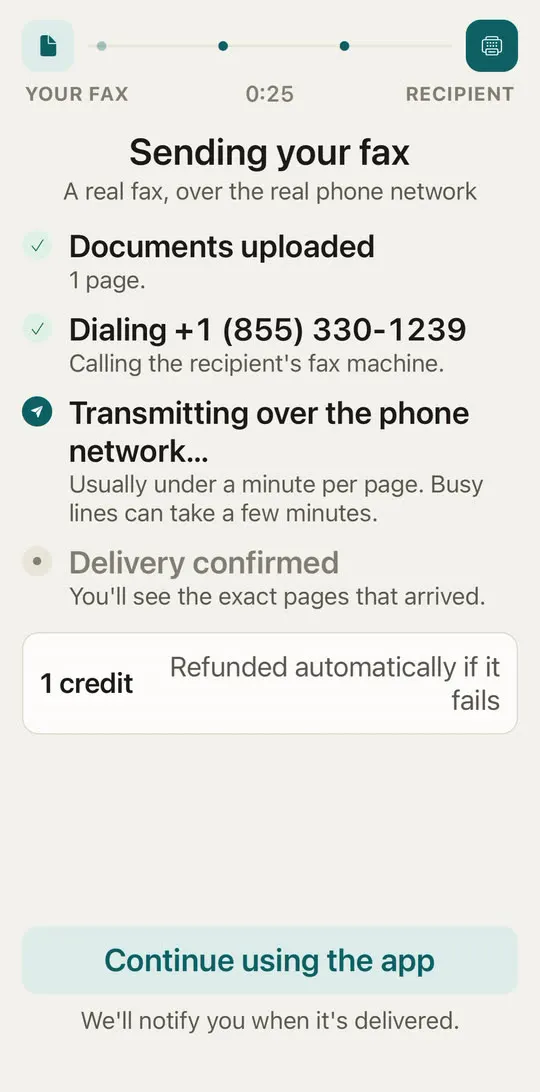
Tap Send fax. The sending screen shows each step as it happens:
- Uploading your pages. Keep the app open for these few seconds.
- Dialing the number.
- Transmitting the pages.
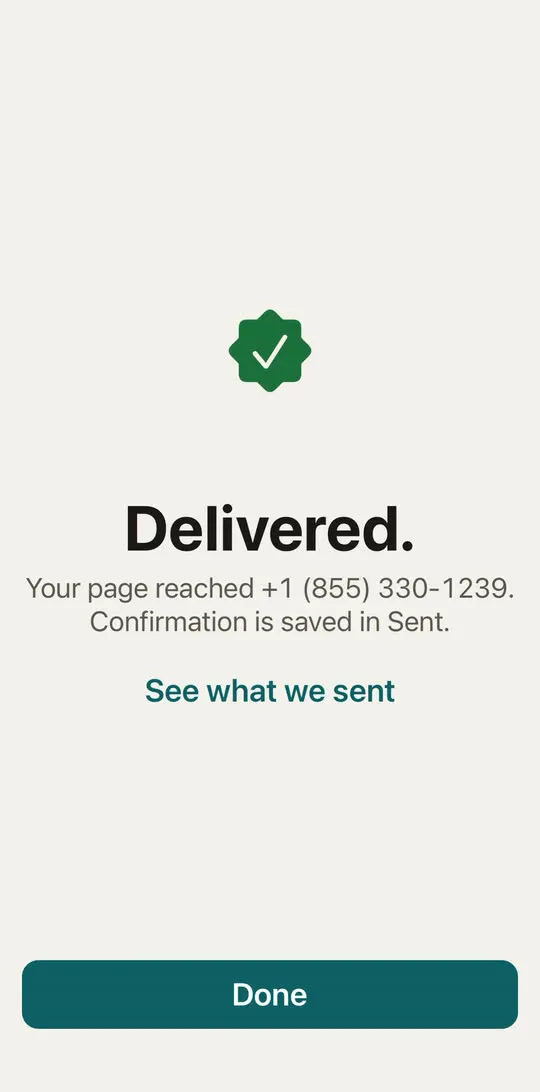
- Delivered, once the receiving machine has accepted every page.
After the upload you can tap Continue using the app and leave. You'll get a notification when the fax is delivered.
Step 6: Keep the proof
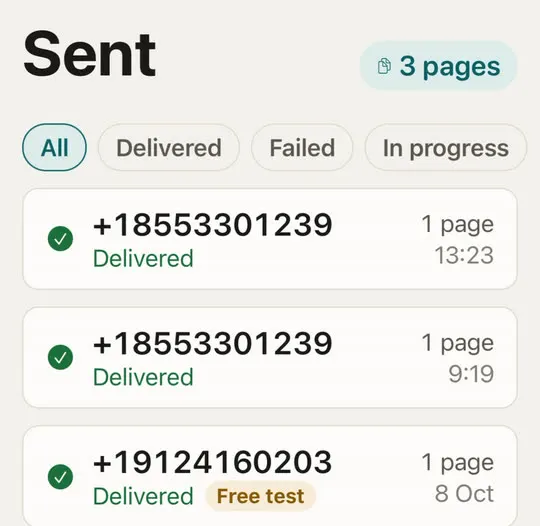
Every fax appears on the Sent tab with its status. Tap one to see the exact pages that were transmitted, which is useful if someone says they never got it. More in how to confirm a fax was received.
If the line is busy or doesn't answer, the app retries automatically. If the fax still can't be delivered, your credits come back on their own. See why a fax fails, and how to fix it.
Frequently asked questions
Can I fax from an iPhone without an app? Not directly. An iPhone can't make the fax tones itself. Online services do the dialing for you, either through an app or a website.
How long does it take? Usually one to three minutes for a few pages. Busy lines take longer because of retries.
Which countries can I send to? With HonestFax: the United States, Canada, the United Kingdom, Germany and Japan.
How much does it cost? A fax of up to 3 pages is $2.99, 10 pages are $4.99 and 30 pages are $9.99. See all prices, or compare with stores and websites in how much does it cost to send a fax.
Can I receive faxes too? Yes, with a fax number of your own. See how to receive a fax on iPhone.